Smart TV Setup Guide
Complete step-by-step instructions to get your Smart TV configured and ready to use.
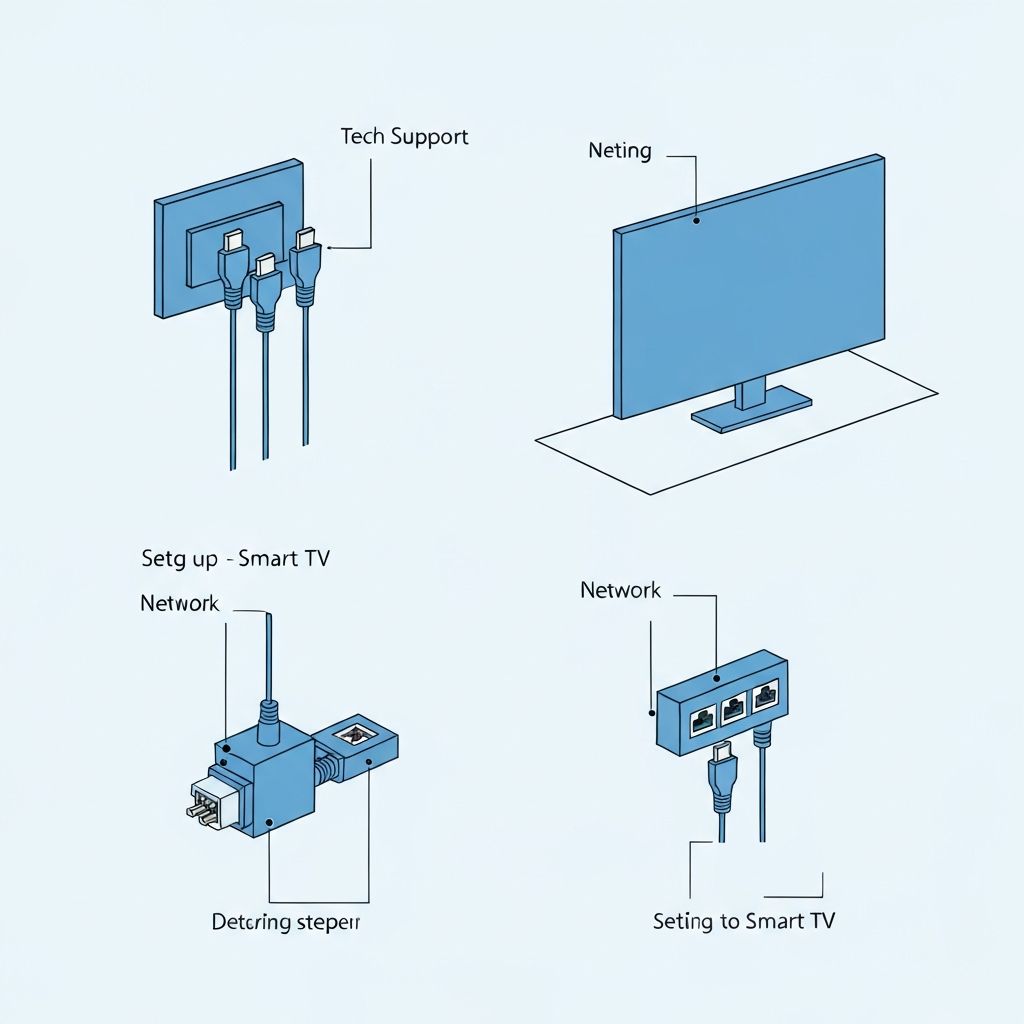
In This Guide:
1
Initial Unboxing & Connections
Before powering on your TV, ensure you have everything set up properly:
- Place your TV on a stable surface or mount it securely
- Connect the power cable to the TV and a power outlet
- Attach the remote batteries (typically AA or AAA)
- Connect HDMI cables if using external devices (cable box, gaming console, etc.)
- For internet connectivity, prepare your WiFi network details
Tip: Keep your WiFi network name (SSID) and password handy before you start setup.
2
Power On & Language Selection
After connections are complete, power on your TV:
- Press the power button on your remote or the TV itself
- Wait for the TV to fully boot (usually 30-60 seconds)
- You'll be greeted with a welcome screen
- Select your preferred language from the options
- Click Continue or Next to proceed
Note: Some TVs may show a demo mode initially. Skip this to proceed to setup.
3
Network Connection Setup
Connect your TV to the internet:
- When prompted for network, select WiFi connection
- Choose your WiFi network from the available list
- Enter your WiFi password exactly as it appears (case-sensitive)
- Select Connect or Continue
- Wait for the connection to be established
WiFi Connection Tips:
- If your network doesn't appear, ensure your router is on
- Move the TV closer to your router if connection fails
- Check that your password is entered correctly
- Consider a 2.4GHz network if having connection issues
4
Account & Sign-In Setup
Set up your TV account:
- The TV will prompt you to create or sign in to an account
- You can use an existing account or create a new one
- Follow the on-screen prompts to enter your credentials
- Verify your email if prompted
- Set up a PIN if the TV requires it for parental controls
Important: If you see a code displayed on your screen during sign-in, this is normal. Refer to our activation guide for more information.
5
App Installation
Install your favorite streaming and utility apps:
- Look for the app store or app marketplace option
- Browse or search for apps you want to install
- Select an app and choose Install
- Wait for the app to download and install
- Once installed, select Open to launch the app
Popular apps typically available include:
Netflix
YouTube
Hulu
Disney+
Amazon Prime
Spotify
6
Initial Configuration
Customize your TV settings:
- Adjust picture settings (brightness, contrast, color)
- Set your preferred audio output
- Enable any accessibility features you need
- Customize your home screen layout
- Enable automatic updates (recommended)
Recommended Settings:
- Enable automatic system updates
- Turn on power-saving mode if desired
- Set up parental controls if needed
- Enable HDMI CEC if using multiple devices
7
Common Setup Issues
TV won't connect to WiFi
- Check that your WiFi network is broadcasting
- Move TV closer to the router
- Verify the WiFi password is correct
- Try 2.4GHz network if available
- Restart your router and TV
Can't sign in to account
- Verify your username and password
- Check that the TV has internet connection
- Try resetting your account password
- Clear the TV cache and try again
Apps won't install or update
- Ensure sufficient storage space on TV
- Check internet connection stability
- Restart the app store and try again
- Update TV software to latest version